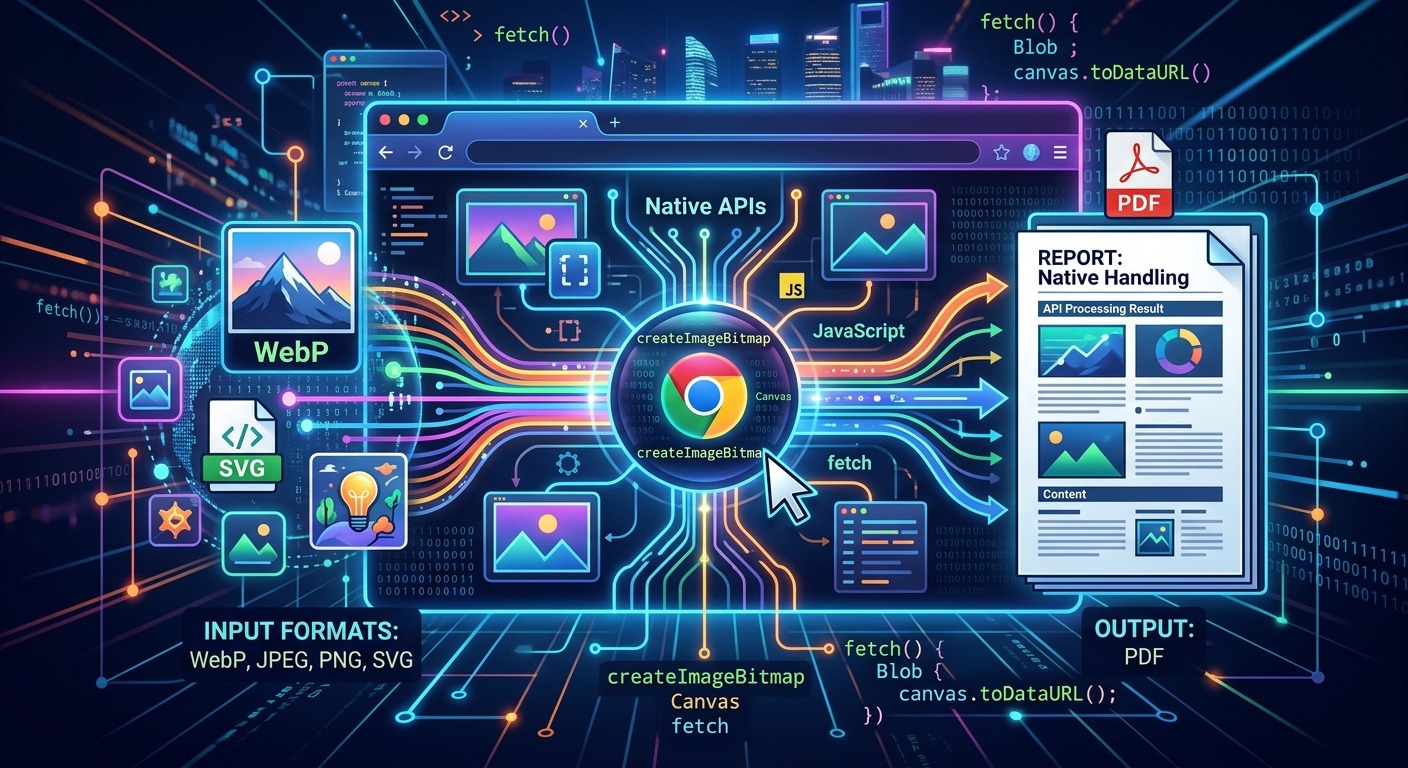
The browser stopped being a passive display layer the moment teams started shipping serious image manipulation directly on the client. Load a raw file, decode it, resize it, encode it to WebP, and hand the user a download button. No S3 upload. No Lambda function. No round-trip. The native API surface for doing this has grown substantially over the past few years, and the combination of Canvas API, ImageBitmap, OffscreenCanvas, and the File System Access API gives you a genuine production-grade pipeline right inside the runtime your users already have.
A fully browser-native WebP image pipeline is achievable today using four complementary APIs, no server required.
- Canvas API and OffscreenCanvas handle pixel transformation and WebP encoding without locking the main thread.
- The File System Access API replaces anchor-tag hacks with a real native save dialog and directory access for batch exports.
- For one-off document exports outside the app context, dedicated converter tools bridge the gap between raw image files and portable PDFs.
Why WebP Has Become the Browser’s Default Encoding Target
WebP reached broad browser support a few years ago, and that milestone changed what you can realistically build on the client. Every major browser now handles both encoding and decoding natively, with no external dependency. The format delivers smaller file sizes than JPEG at comparable quality and supports alpha transparency, which JPEG never could. For a client-side pipeline, this means you can accept arbitrary input formats from users and normalize everything to a consistent output without installing a single native module.
The mechanism for encoding is toBlob() on HTMLCanvasElement. Pass 'image/webp' as the MIME type and a quality float between 0 and 1. The browser handles compression internally using its own codec implementation. That single API call is the reason WebP makes sense as the target format across the entire pipeline. It is supported, consistent, and predictable across the browsers your users are actually running.
The Canvas API as the Core of Your Transformation Layer
The Canvas 2D rendering context is where most of the actual work happens. You draw an image source into the canvas, apply any transforms or cropping you need, then read the result back out as an encoded blob. The WHATWG canvas specification defines a drawing model that covers scaling, compositing, and pixel-level access through getImageData, giving you enough surface area to build anything from a straightforward format converter to a full-featured image editor.
Here is a minimal WebP encoding function that accepts any supported image format as a File object:
async function toWebP(file, quality = 0.85) {
  const bitmap = await createImageBitmap(file);
  const canvas = document.createElement('canvas');
  canvas.width = bitmap.width;
  canvas.height = bitmap.height;
  const ctx = canvas.getContext('2d');
  ctx.drawImage(bitmap, 0, 0);
  return new Promise(resolve => {
    canvas.toBlob(blob => resolve(blob), 'image/webp', quality);
  });
}
This handles JPEG, PNG, GIF, AVIF, and existing WebP inputs without any conditional logic. The createImageBitmap call manages decoding, and toBlob manages encoding. You get a Blob back, ready to be displayed as a preview or written to disk.
ImageBitmap for Cleaner, More Controlled Decoding
createImageBitmap is one of the most underused parts of the image API surface. Most tutorials go straight from an <input type="file"> to drawing on canvas, skipping the ImageBitmap step entirely. That skipped step matters for both performance and control.
ImageBitmap decodes the source data and produces a GPU-ready bitmap. The decoding is asynchronous, so it does not block the main thread. More usefully, the function accepts an options object that lets you crop, scale, and control color space handling during the decode pass, before the image ever touches a canvas. This makes ImageBitmap a natural preprocessing stage for pipelines where you need to normalize dimensions on the way in.
const bitmap = await createImageBitmap(file, {
  resizeWidth: 1280,
  resizeHeight: 720,
  resizeQuality: 'high'
});
The resizeQuality option accepts 'pixelated', 'low', 'medium', and 'high'. For photographic content, 'high' uses a bicubic algorithm and produces noticeably sharper results than the default. Setting this early in the pipeline keeps your canvas step simple. You draw a pre-scaled bitmap and call toBlob. No additional scaling logic needed on the canvas side.
OffscreenCanvas and Moving Encoding Off the Main Thread
OffscreenCanvas transfers canvas rendering into a Web Worker. That means image processing happens completely off the main thread. For batch workloads, this is a meaningful change. A user drops a folder of fifty images into your app. You want to convert all of them to WebP without freezing the interface. OffscreenCanvas makes that a clean architectural decision rather than a performance hack.
The API inside a worker is close to identical to the main-thread canvas with one notable difference. OffscreenCanvas uses convertToBlob() instead of toBlob(). The convertToBlob method returns a Promise directly rather than using a callback, which fits the async worker context well and keeps the code readable.
// worker.js
self.onmessage = async ({ data: { file } }) => {
  const bitmap = await createImageBitmap(file);
  const canvas = new OffscreenCanvas(bitmap.width, bitmap.height);
  const ctx = canvas.getContext('2d');
  ctx.drawImage(bitmap, 0, 0);
  const blob = await canvas.convertToBlob({
    type: 'image/webp',
    quality: 0.85
  });
  self.postMessage({ blob }, [blob]);
};
You can spawn multiple workers and distribute the file list across them. Each worker handles its own subset of images. The UI thread stays responsive throughout, and the user sees real progress rather than a frozen screen and a spinning cursor.
Writing Export Files with the File System Access API
Once you have a WebP Blob, you need to get it to the user. The classic approach creates an anchor element with an object URL and triggers a click programmatically. That still works. A more capable path comes from browser-native filesystem writes: a real operating system save dialog with a suggested filename, accepted MIME type filtering, and the ability to write directly to an existing file location without the user manually finding it in their downloads folder.
The showSaveFilePicker method accepts a configuration object with a suggested name, a human-readable description, and a list of accepted types. The user picks a location. You write to it using a FileSystemWritableFileStream.
async function saveWebP(blob, suggestedName = 'export.webp') {
  const handle = await window.showSaveFilePicker({
    suggestedName,
    types: [{
      description: 'WebP Image',
      accept: { 'image/webp': ['.webp'] }
    }]
  });
  const writable = await handle.createWritable();
  await writable.write(blob);
  await writable.close();
}
For batch exports, showDirectoryPicker lets the user select a folder once. You write each output file into that directory handle without prompting again. For fifty converted images, that single permission prompt is a dramatically better experience than fifty sequential save dialogs.
When Output Needs to Be a Document, Not an Image File
There are scenarios where raw image files are not the right deliverable. A design tool that lets users export artboards. A photo management app where users want to package a set of images for a print shop. Any workflow where a recipient expects a single file they can open in any viewer and print predictably. PDF handles all of those cases in a way that a folder of WebP files cannot.
Building a full PDF encoder in the browser is achievable with libraries like PDF-lib or jsPDF, and for complex multi-page documents that is usually the right call. The canvas pipeline feeds directly into these libraries because they accept raw image data. For users who need to do a one-off Webp to PDF conversion outside the app context, a dedicated browser-based tool handles it without any code or setup, which keeps your in-app pipeline focused on what it does best.
When you do build programmatic PDF export, the WebP blob from your pipeline embeds cleanly into a PDF page using any library that accepts image data. You keep the encoding step exactly as it is and add a document wrapper on top. The two layers stay independent and testable in isolation.
Assembling the Full Pipeline Step by Step
Seeing the individual APIs in isolation is useful. Understanding how they connect in sequence is what makes the whole thing implementable without surprises. The pieces fit together more cleanly than you might expect because each API boundary takes an output the previous one already produces.
- Accept file input via drag-and-drop or a file picker. Work with the
Fileobject directly. There is no need to read it into anArrayBuffermanually. - Pass the
FiletocreateImageBitmapwith resize options. This decodes and normalizes dimensions in a single async step before anything touches a canvas. - Transfer the
ImageBitmapto a Web Worker that owns anOffscreenCanvas. The main thread stays clear of encoding work entirely. - Call
convertToBlobinside the worker with your target MIME type and quality settings. Post the resultingBlobback to the main thread using the transferable objects pattern. - Display a preview using
URL.createObjectURLon the returnedBlob. Let the user inspect the output before committing to a save. - On user confirmation, call
showSaveFilePickerorshowDirectoryPickerand write the output using aFileSystemWritableFileStream. - Revoke object URLs after the write completes. Skipping this step causes memory leaks that accumulate silently across large batch jobs.
Each step maps to a distinct API boundary. That separation means you can swap out the OffscreenCanvas encoding step for a WASM-based encoder without touching the file I/O layer. You can replace the File System Access API save step with a fallback anchor download for browsers that do not support it. The pipeline stays testable and replaceable at every seam.
Browser Support and the Edges Worth Knowing About
OffscreenCanvas is supported in all major browsers, but the timeline matters for your baseline decisions. Safari added support in version 16.4, which shipped in early 2023. If your target includes older Safari versions, a fallback that runs canvas operations on the main thread using a standard HTMLCanvasElement is the pragmatic call. Feature detection is a one-liner:
const supportsOffscreen = typeof OffscreenCanvas !== 'undefined';The File System Access API has broader adoption than many developers assume, but it remains unavailable in Firefox as of 2025. Firefox users fall back gracefully to the anchor tag download pattern. Check for support before calling the picker:
const canUseFSA = 'showSaveFilePicker' in window;For createImageBitmap with resize options, older Chromium versions support the base call but not the full options object. If your target baseline includes those versions, test the resize behavior with a try/catch and fall back to manual canvas scaling when the options are not accepted.
From Raw Pixels to Portable Output, Built Entirely in the Client
The tools for a complete, server-free image processing pipeline have matured enough to belong on your default technology list for any image-heavy frontend feature. WebP encoding via toBlob and convertToBlob, off-thread processing with OffscreenCanvas and Workers, controlled decoding with ImageBitmap, and real file writes with the File System Access API form a pipeline that competes directly with what teams were routing through Lambda functions and dedicated microservices just a few years ago.
The one gap native APIs do not cover out of the box is multi-image document packaging. For that, you either pull in a PDF library or give users a clear path for the times they need a document format fast. Both approaches are valid depending on your user base and the scope of your feature. What matters is that the core work, the decoding, transforming, encoding, and exporting, can all stay in the client, without a network round-trip in the critical path, and without asking your users to install anything beyond the browser they already have open.